How To Use Saved Image From Your Computer To Add To Your HTML Page
Inserting images from your saved images to your site in html

Introduction
In my previous post regarding inserting images to your HTML pages, we had used the url of the websites in your html image source to get the image added to your website. You could have used several suggested free platforms such as pexels, adobe, and many others if you search google , to make your html page very illustrative. In this part, I want to show you how to use the saved image from your laptop to insert in your html code.
The Process using imgur
First of all, find some beautiful pictures if you do not have any and save it to your device. Then, upload this image to a free website called imgur.com. All you need to do is to set up a free account by signing up on imgur.com and then use their free feature for uploading your saved images to this site.
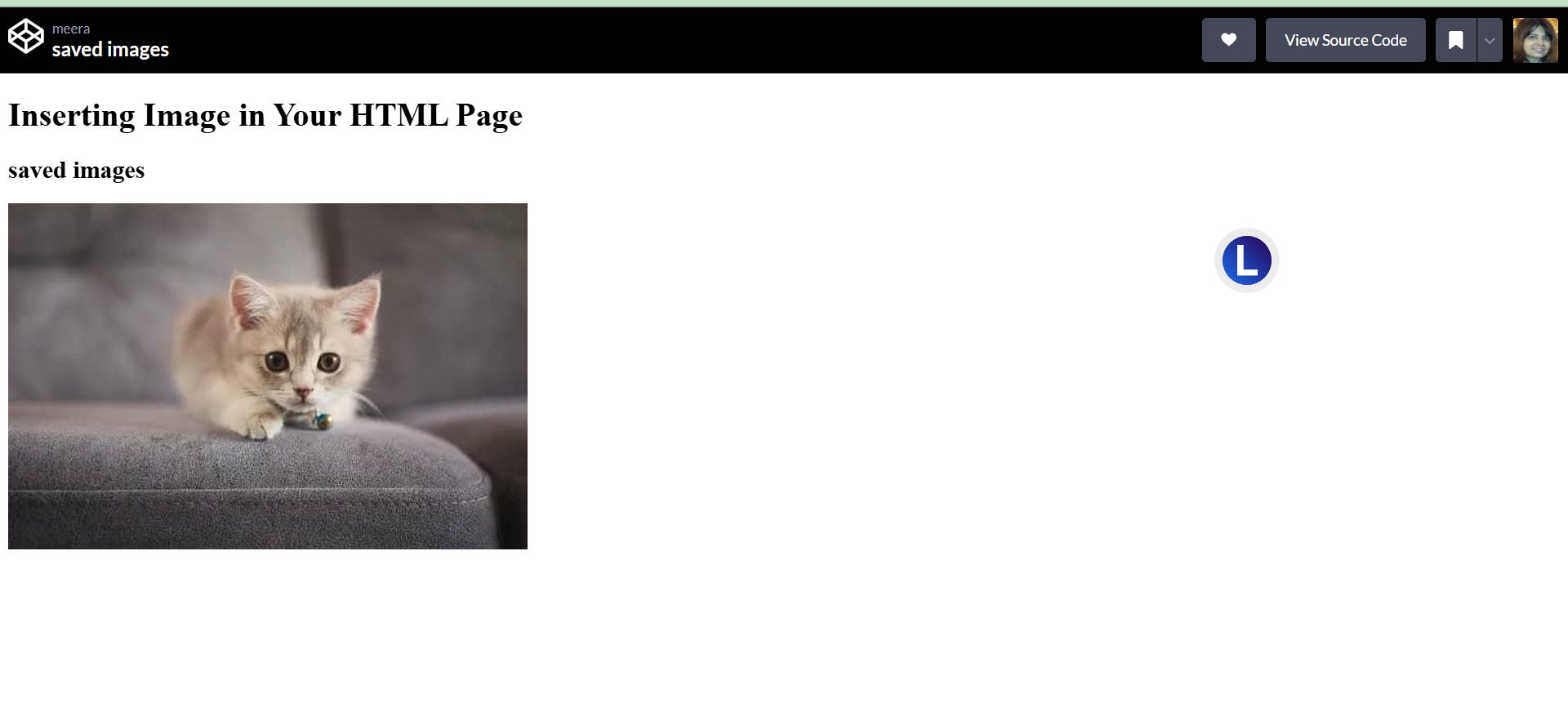
To show you an example case, I have uploaded a cat’s image to my imgur page and when you open this page with the image, you will see that there are multiple buttons to copy with different urls mentioned there. You need to select the copy button with the Direct Link that has the url of the image of the cat with the jpg extension. Do not copy the other buttons that does not have the jpg extension.
The main imgur home page after you sign up and start uploading some images and posts would like this.
The final code for inserting the image
<h1> Inserting Image in Your HTML Page</h1>

<h2>saved images</h2>

<img src="https://i.imgur.com/23ovOXw.jpg" />
View the HTML page with the image
The following screenshot of the html page with the image is the full view page from my codepen editor. The link to this codepen full view screen can be clicked to take a look and the source code is here for you to see the actual working in the code editor.
Using file path from your computer to insert the image
If you dont want to upload on imgur but use the saved image directly on your html page, then, you need to use the Notepad editor that comes freely with your laptop.
This is how it looks like on viewing your html page using Notepad:
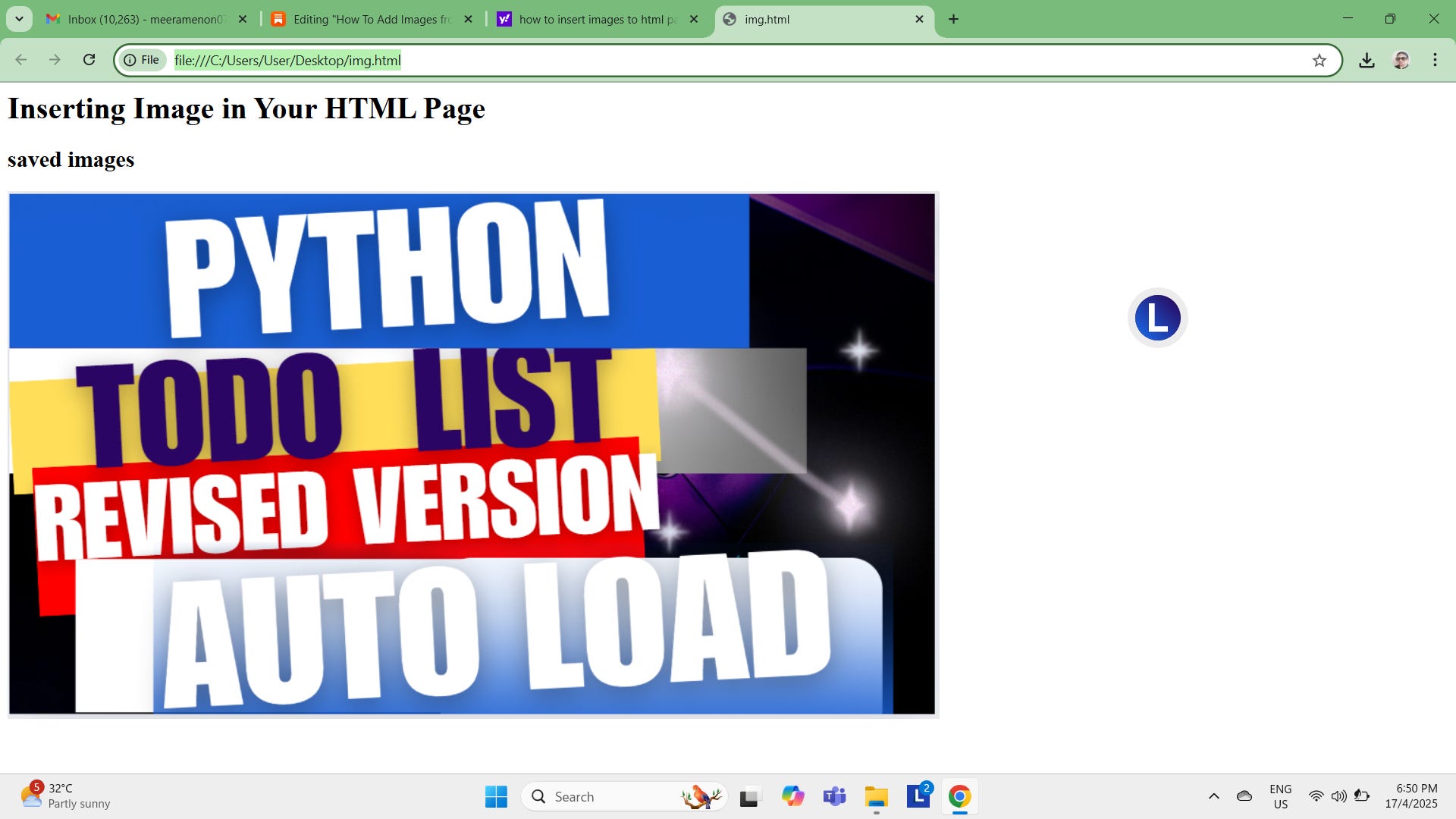
Process using Notepad to insert saved images
Code for directly using the file path in your note pad would show the actual file path for your picture folder stored in your computer. First you need to open your image in your computer, then right click to open in ‘file explorer’ and when you see the properties, click on properties. The properties would also show you the actual file path and you just need to copy the file path and insert it in your code block inside the img src=”” and whoa, your htmp page is visible with your image!
The image file that I had saved in my computer
I need to open this image then right click on the image and choose the option , “open in file folder”

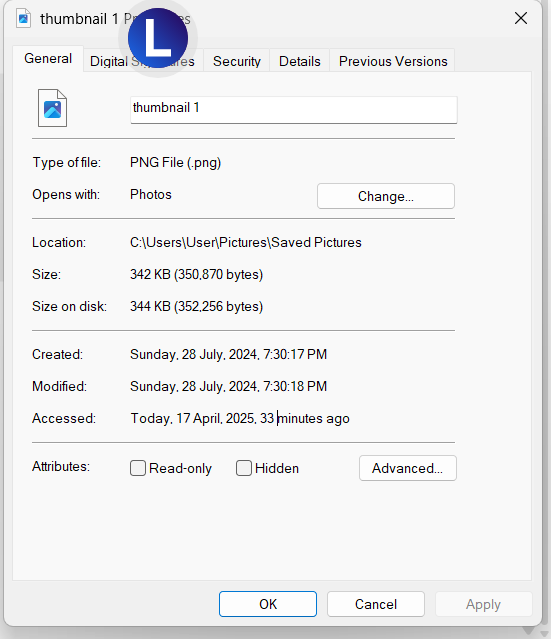
When your image opens in the file explorer mode, then, it will show you the properties file , as shown in the screenshot of my image properties that I am showing you here for your understanding.
Following is the screenshot of the properties with the file path of location for the picture of the thumbnail that I had saved on my computer after I clicked on properties of the image, please look closely on the picture folder path, you just need to copy it. The folder path for the picture is contained under the Location and if you click on the path mentioned next to the Location here in the properties, you will be able to copy the path of the page and then paste it inside your html <img src=””>
Please read the source code that I have mentioned in the code block below for you to understand and follow up with your saved images.
Code
<h1> Inserting Image in Your HTML Page</h1>

<h2>saved images</h2>

<img src="C:\Users\User\Pictures\Saved Pictures\thumbnail 1.png" />
Conclusion
Please note that you cannot directly insert images from your computer to your html page if you are using a codepen editor. That is why, for beginners, since I am using a codepen editor, I showed you the alternate way of uploading your image to imgur site first before following above steps to do the needful as indicated above.
However you can insert the saved image to your html code if you are using a notepad code editor for your coding.
In my next post, I will be writing on how to write code and view it in your Notepad editor.
More html posts for your reading:
How To Add Images from URL To Your HTML Page






Comments
Post a Comment