How To Run an HTML Program Using Windows Terminal & Notepad

Introduction
This guide will teach you how to run your HTML code from Windows Terminal and here you will be coding on the Notepad code editor. Read carefully to understand the steps properly.
Write Code using Notepad
For writing the html code, we are going to consider a very basic code with some headers and paragraph so that you are actually concentrating on the process of running the code rather than trying hard to understand the code! Take a look at the code below.
<h1>Run Code From Windows Terminal</h1>
<h2>Code using Notepad</h2>
<p>This blog post instruction is meant for beginners in HTML/CSS.
 <p>Ipsum lorem Ipsum Loren Ipsum Loren Ipsum Loren etc ect ect</p>
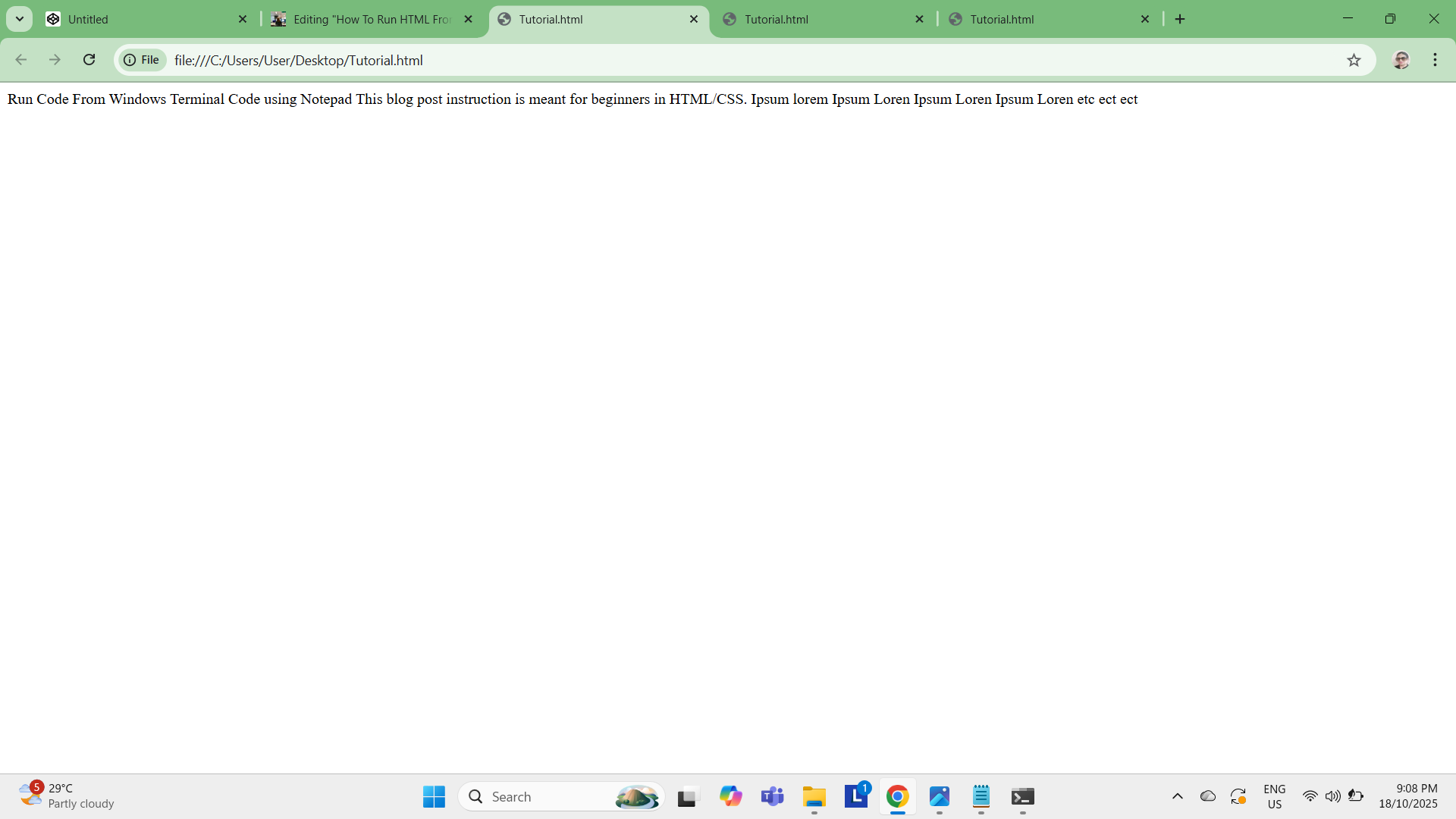
In the above code you can see one big header and one smaller header followed by two paragraphs as shown in the code block. The full view display will be as shown below.
Now, after writing this code on Notepad file, we are going to save the file with a .html extension
Every computer or laptop comes with a built-in Notepad App. For Notepad++ which is more of the latest version, you will need to download it from Windows but here I decided that our good old in-built version of the Notepad is good enough for beginners and even intermediate coders and learners!
If you don’t know how this code written on a Notepad file looks like as the screenshot shown below.
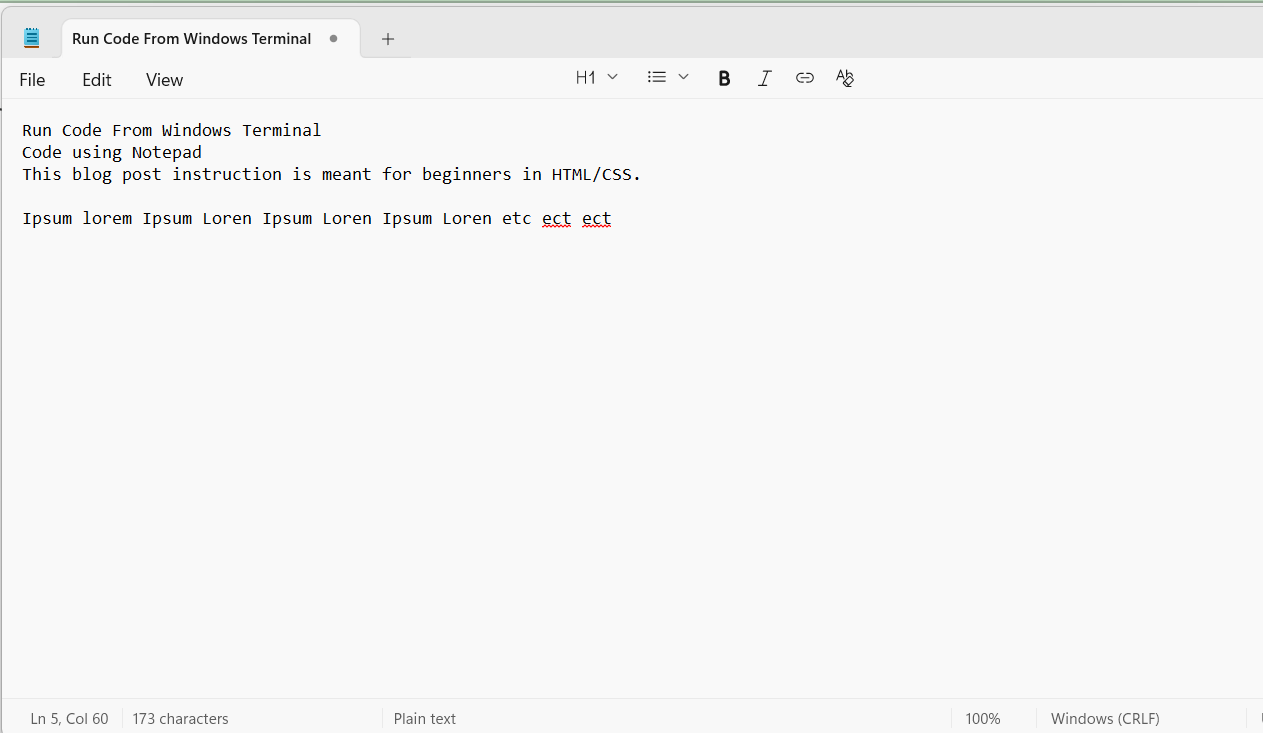
You can see the blue Notepad icon in the background of the code, that's the Notepad app that is inbuilt on your Windows laptop or computer and you can just find it by typing the keyword Notepad in your computer or laptop search bar.
Save the file
Now that you know how it looks with the code written in it as shown above, let us then save this file with a .html extension. First click on the file menu that you find on the top left of the code file, then, click on the ‘Save as’ option in the drop down options menu. Give the file a name like the one I have given as Run Code From Windows Terminal. Then I give it a .html extension, so the final file that is going to be saved looks like ‘name of the file’.html The name of the file is decided by you. Then the prompt will appear for ‘Save as type’ to which you should set it as ‘All files’ .Note that the Encoding UTF by default has a value of UTF-8, that is standard for all HTML web pages. I have captured a screenshot of this saving step so that you can get a quick idea of how to do this procedure. The screenshot is as given below.
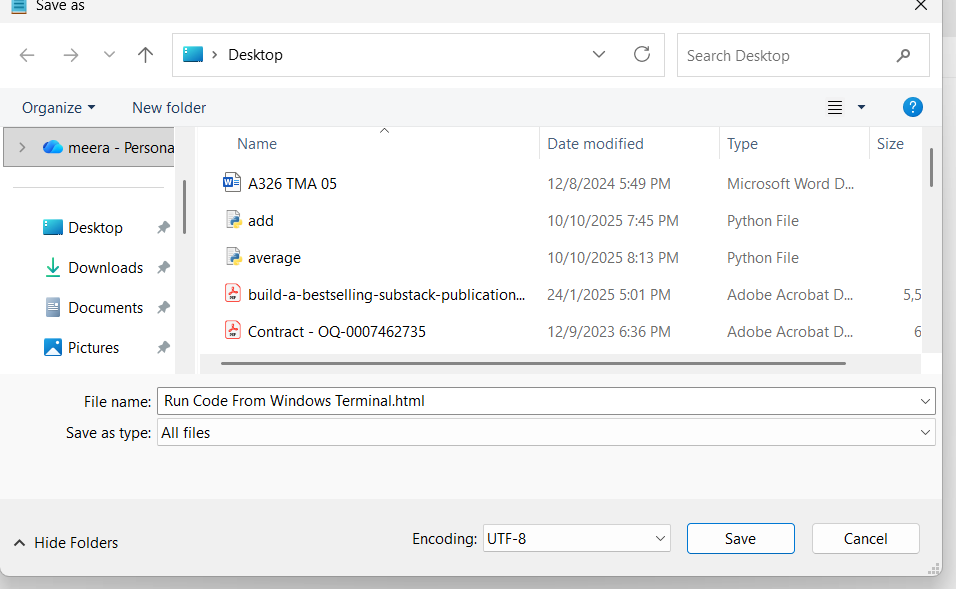
Next click on the Save button to save your html code file that I have saved on my Desktop.
Open The Windows Terminal
Next step is to open the Terminal app on our device windows to run this program. For opening the Terminal, just type the keyword, Terminal in the search bar of your computer Windows. I have included a screenshot of this process as shown below for you to get a clear visual of the same for a deep understanding of the actual step .
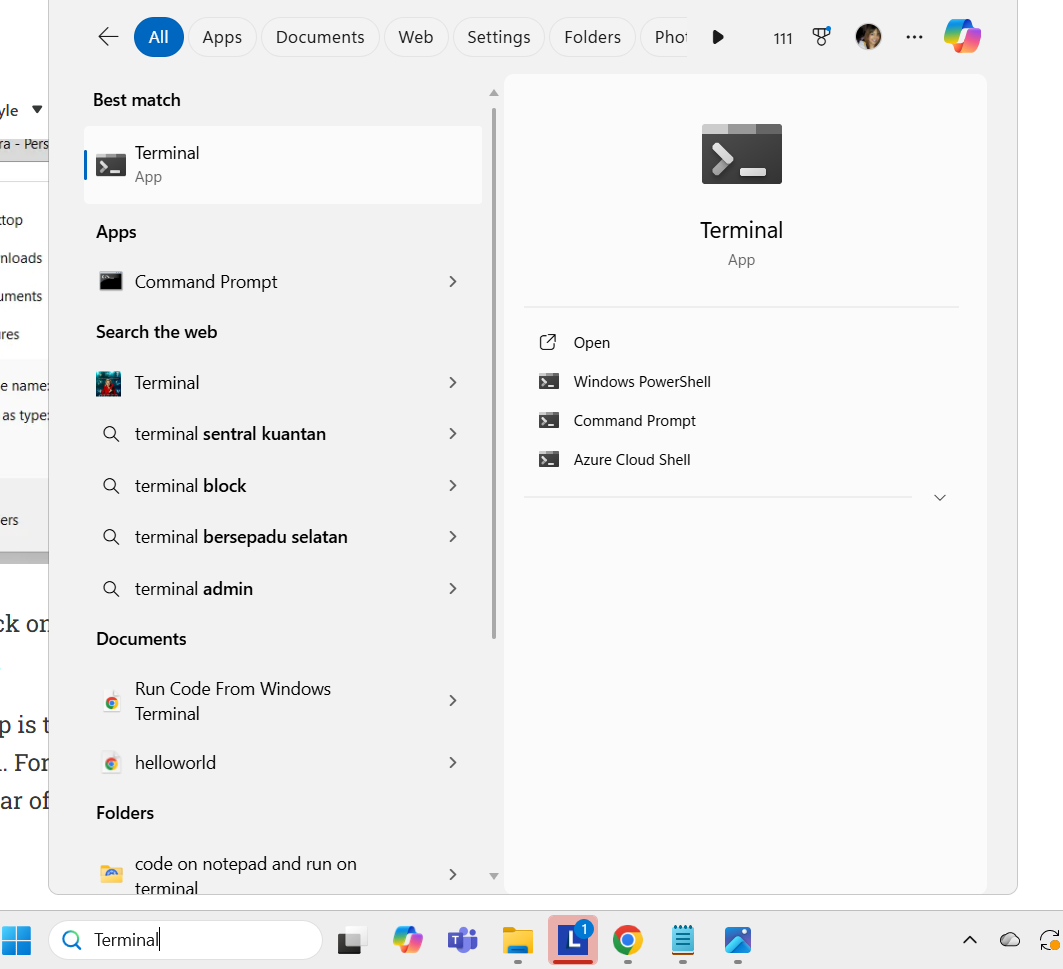
After opening the Terminal, type the command prompt looks like this
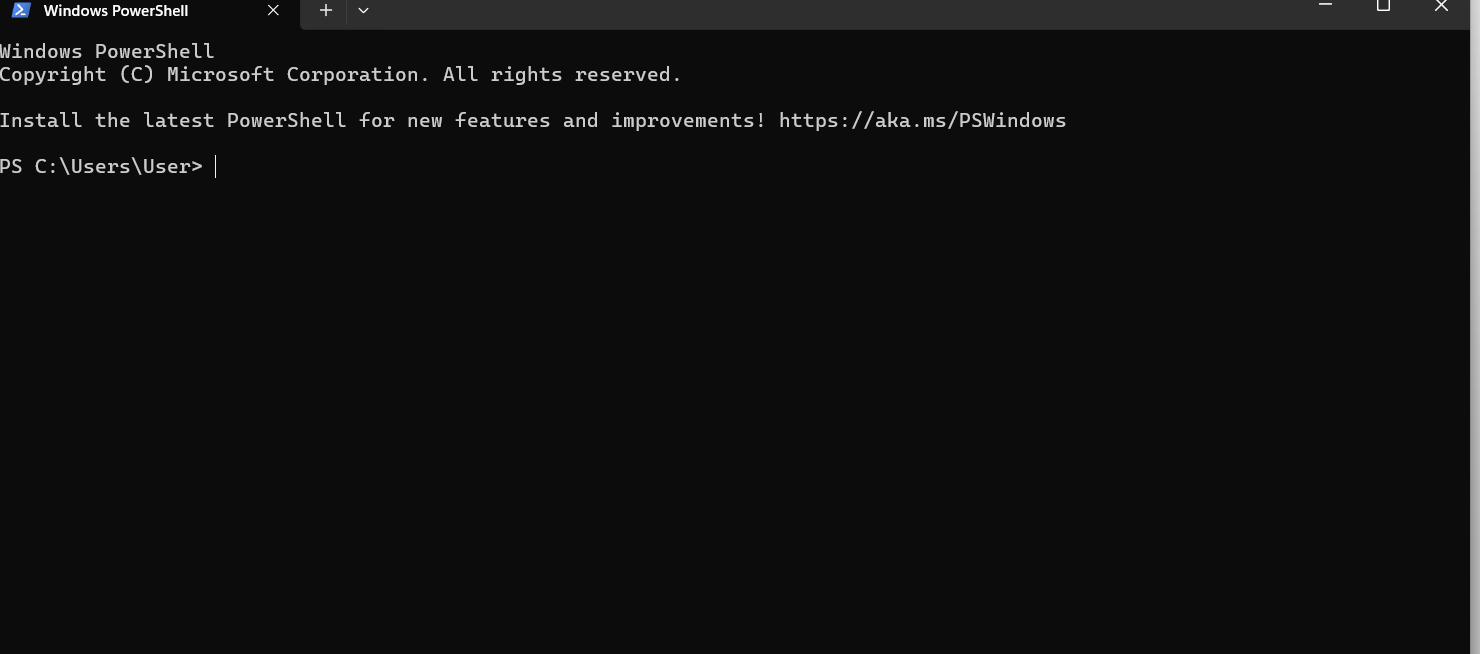
Steps To Run the Program
Now that you see how the Terminal looks on your Windows, you can enter the command after the prompt . You need to type the keyword cd that means ‘change directory’ followed by the file path. For finding the file path, you need to look at the properties of the file. Let me show you how it is done.
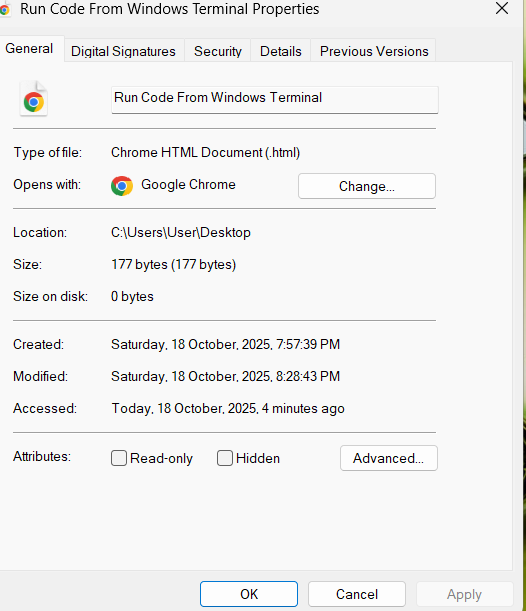
In the above screenshot look at the location value. You need to copy this value of the location path and then type this path after typing cd in order to run the program from the terminal.
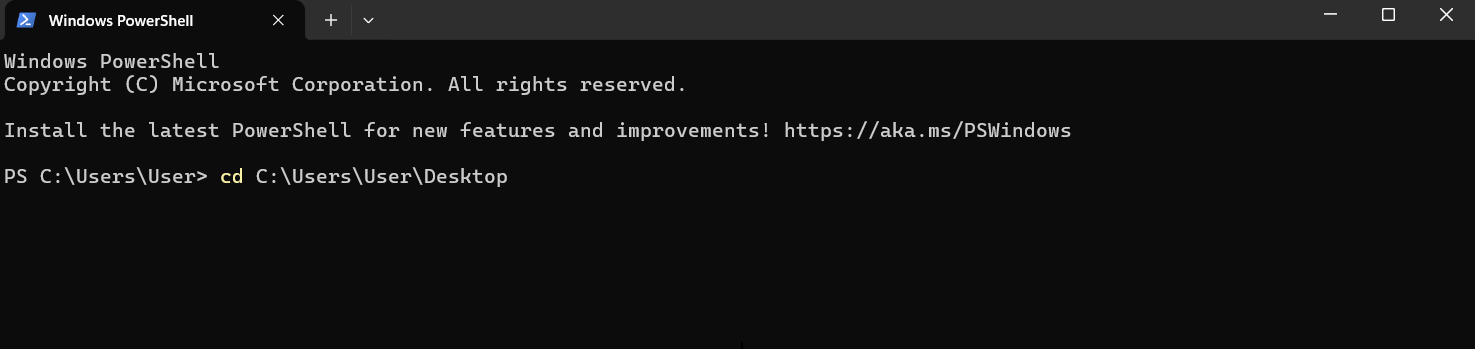
In the above screenshot, observe the command written after the User> prompt.First you write cd followed by a space then followed up by typing the location of your html file destination path which in this case is C:\Users\User\Desktop
Next click enter to run the program from the terminal.
Now the second prompt will appear in the terminal at which we type the command “.\Tutorial.html” in other words we need to type a dot followed by backslash followed by the name of the saved html file with the html extension as shown below in the screenshot.
Please note that I changed my html code file in the Notepad to an easier name to remember, that is, Tutorial.html.
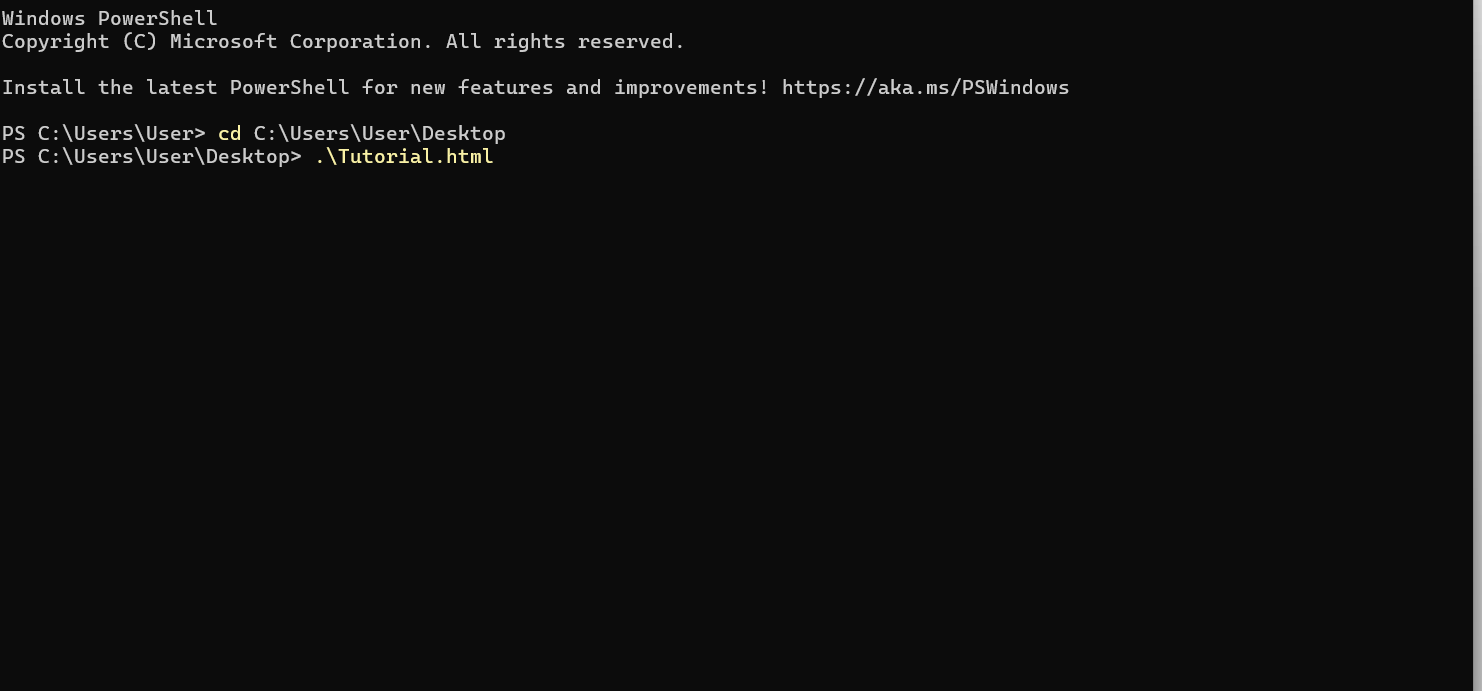
So, after the first command prompt you enter cd followed by the file location path and click “Enter’ key on your keyboard. Then when the second line of command prompt appears you just type the name of the file which is Tutorial.html preceded by a dot and a backslash. That's all! When you click the enter key on your computer keyboard, the windows will display after running the code like below visual.
Next if you want to edit your html file, then you need to open your notepad file with the .txt extension and edit it and then follow all the steps above to run it from the terminal.
Conclusion
Congratulations! You just learnt how to write some code in your Notepad app , then save it with a .html extension and then Run the command from the Windows Terminal. Please note that if you want to edit your html file then you need to open your file with .txt extension and then edit. After editing the file, you can again run the program on your windows terminal by following all the above steps as shown with details above.







Comments
Post a Comment